I wanted to build something for my next city walk that's more than a guided tour — a real puzzle adventure that captivates strangers just as much as friends. With myOutdoorEscape I set GPS stations, choose a puzzle for each one, and submit the course for review at the end. Once it's approved, I can play it with friends for free.
Here I describe how I built my course "Discover the Old Town" — 18 stations through a historic old town, public, with varied puzzle types included.
All stations are on publicly accessible ground. Private property and restricted areas are not included in any course.
Creating the course
I'm standing in the market square in front of the fountain — this will be my starting point. In the app I tap "I am the author", then "New course". Three fields and I'm done.
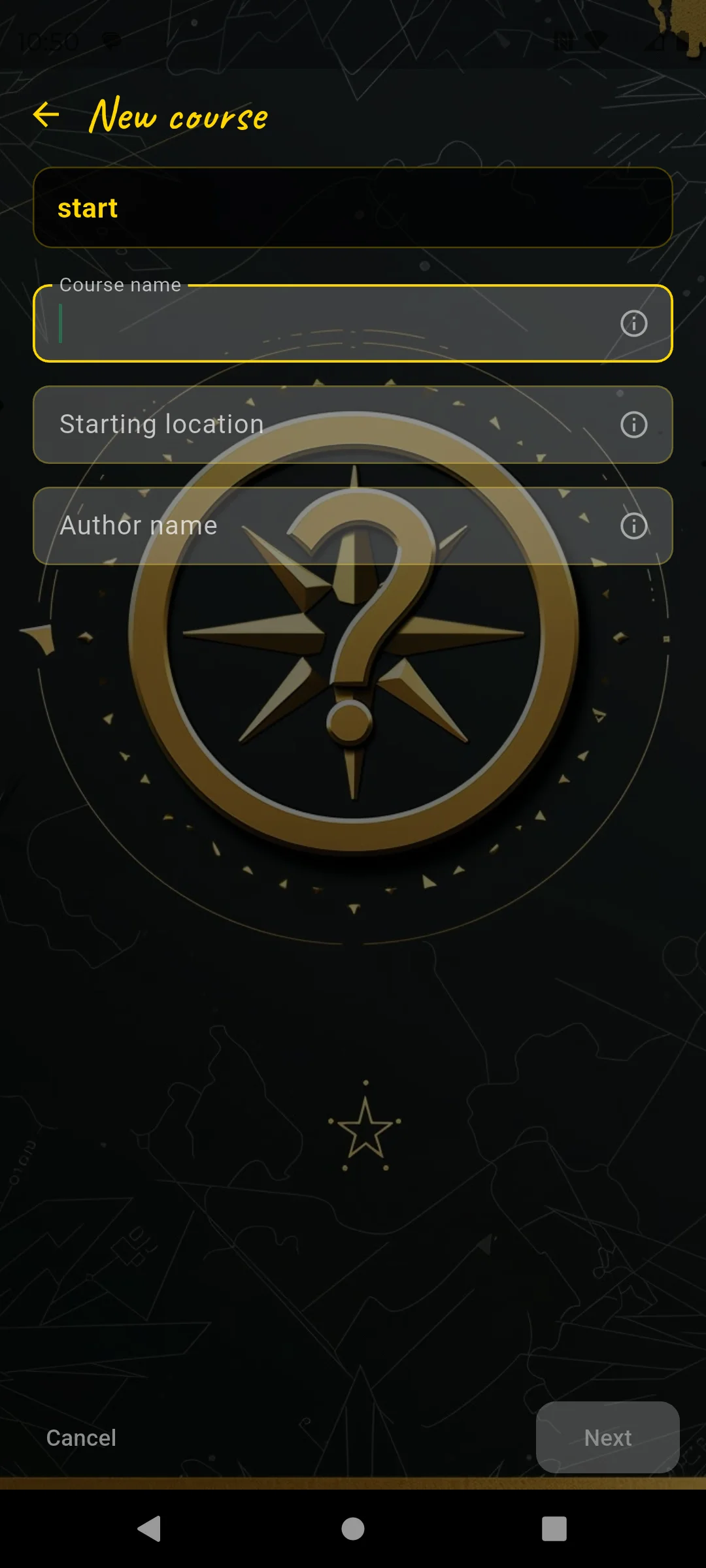
Course name, start location, author name
- Course name: "Discover the Old Town"
- Start location: "Market square, in front of the fountain" — this is the meeting point players see in the catalog.
- Author name: "Thomas"
The app saves my current GPS position as the starting coordinate. That's why I'm actually standing here and not sitting on the sofa at home.
Public or private?
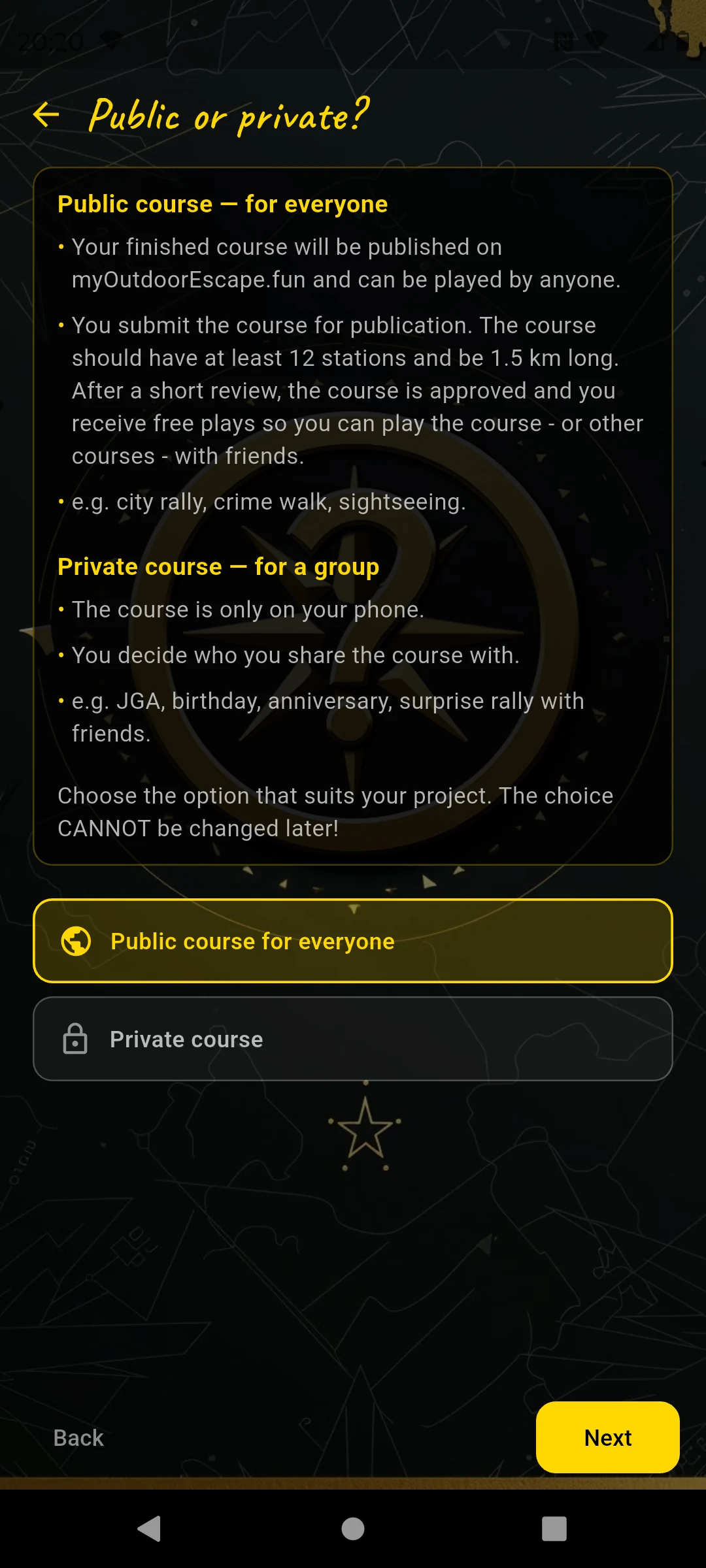
This choice cannot be changed later
I choose Public. My course appears in the catalog, anyone can play it, and I submit it for review after creating it. Once it's approved, I get tickets — which I can use to play it with friends or start other public courses.
Anyone planning the course for a specific group — birthday, bachelor party, family rally — chooses Private. The course stays private and is released for play once; after that, more teams are free. The key difference: the puzzles should be tailored to the group. More on this at station 2.
Choose a theme and set up the map
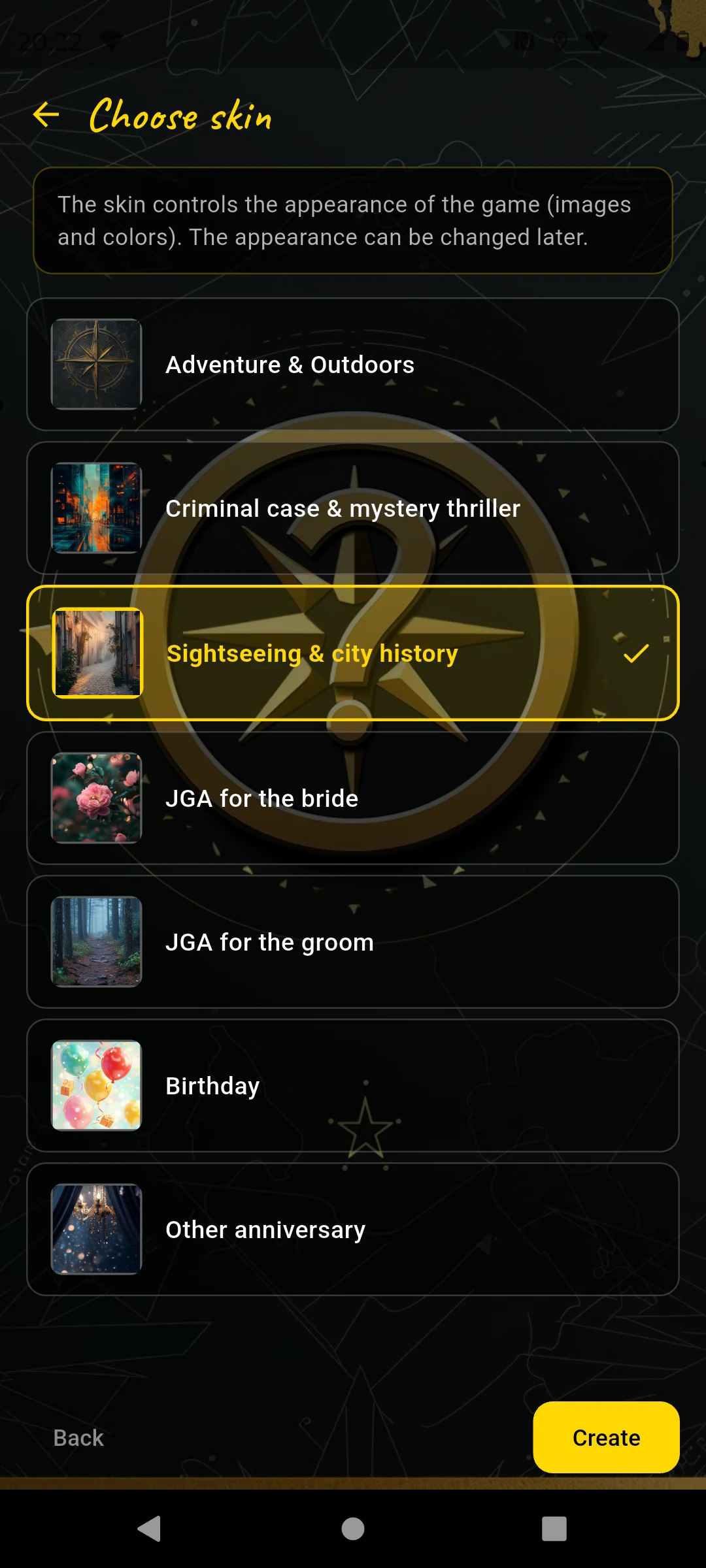
7 themes — colors and atmosphere of the game
I choose "Sightseeing & City History" — fitting for landmarks and historic places. I tap "Create" — and land on the map.
The map is my control center for the entire course. I walk the planned route and tap "+ Station" at each point — the GPS coordinate is recorded directly. The "Course" button at the top later opens the course details with the final question and features.
The 18 stations
Every station follows the same flow: I tap "+ Station", enter a name, take a search image photo — a distinctive detail that clearly belongs to this station and looks the same all year round — and then choose the puzzle type.
For selected stations I add an optional station note. At the market square it may be visible before solving and show historical context, for example # The market in the 18th century plus a short anecdote about the fountain figure. In a mystery tour I would reveal it only after solving, as atmosphere: **Witness statement:** __At midnight, a light was still burning in the tower.__ Later, the station note remains available on the map as its own note icon next to the station.
Station 1 — Market Square Question & Answer
At the market square I take a search image photo of the fountain base and give the station the name "Market Square". As the puzzle type I choose Question & Answer — that's where I start.
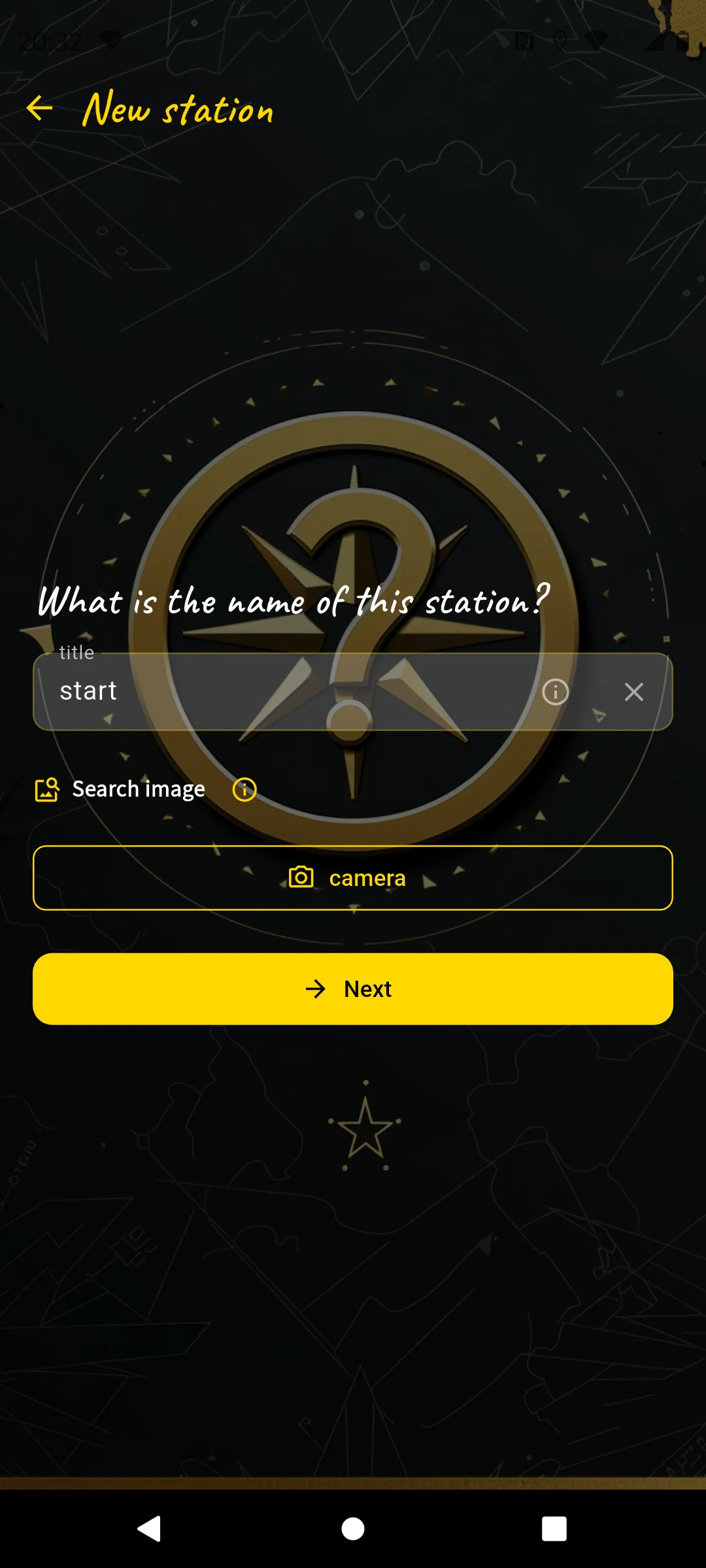
Name & search image photo
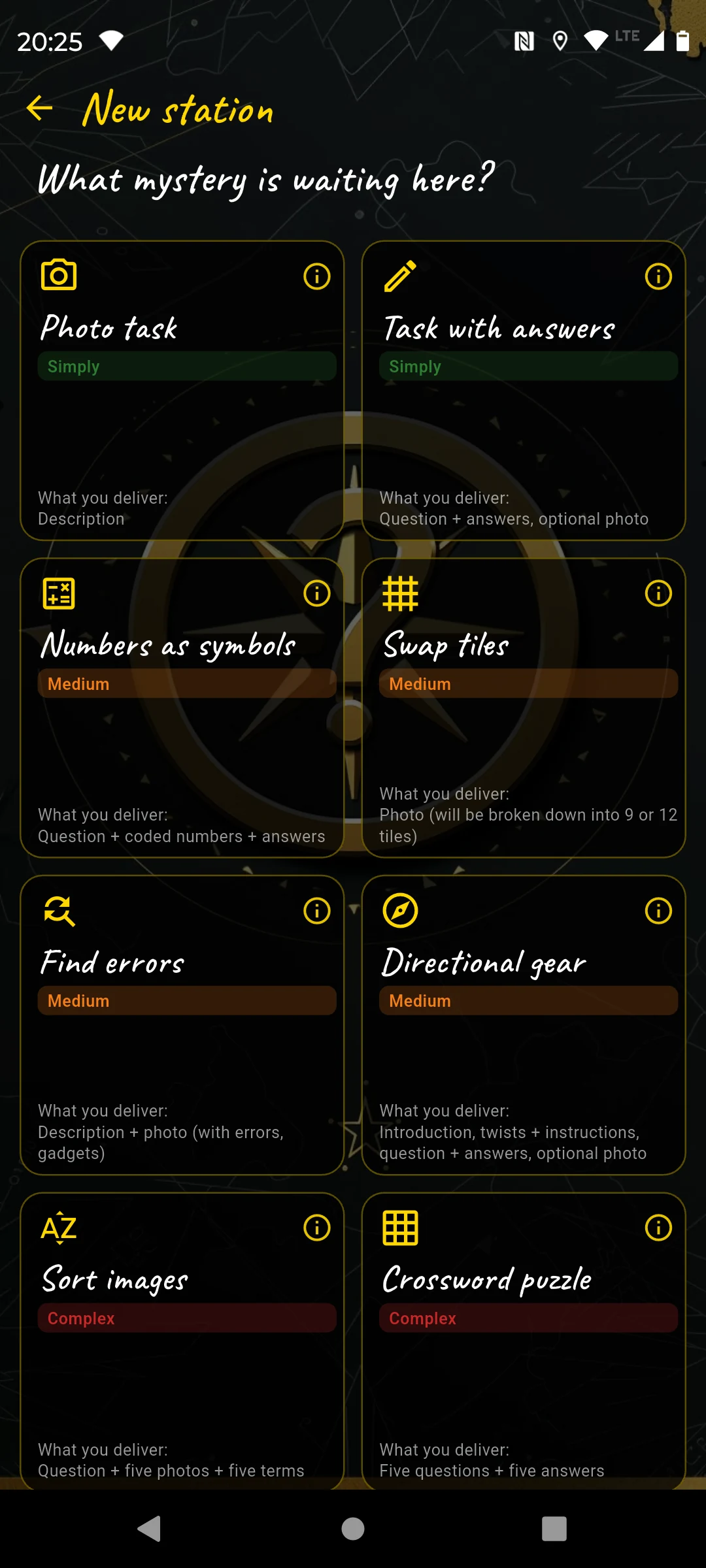
Then: choose puzzle type
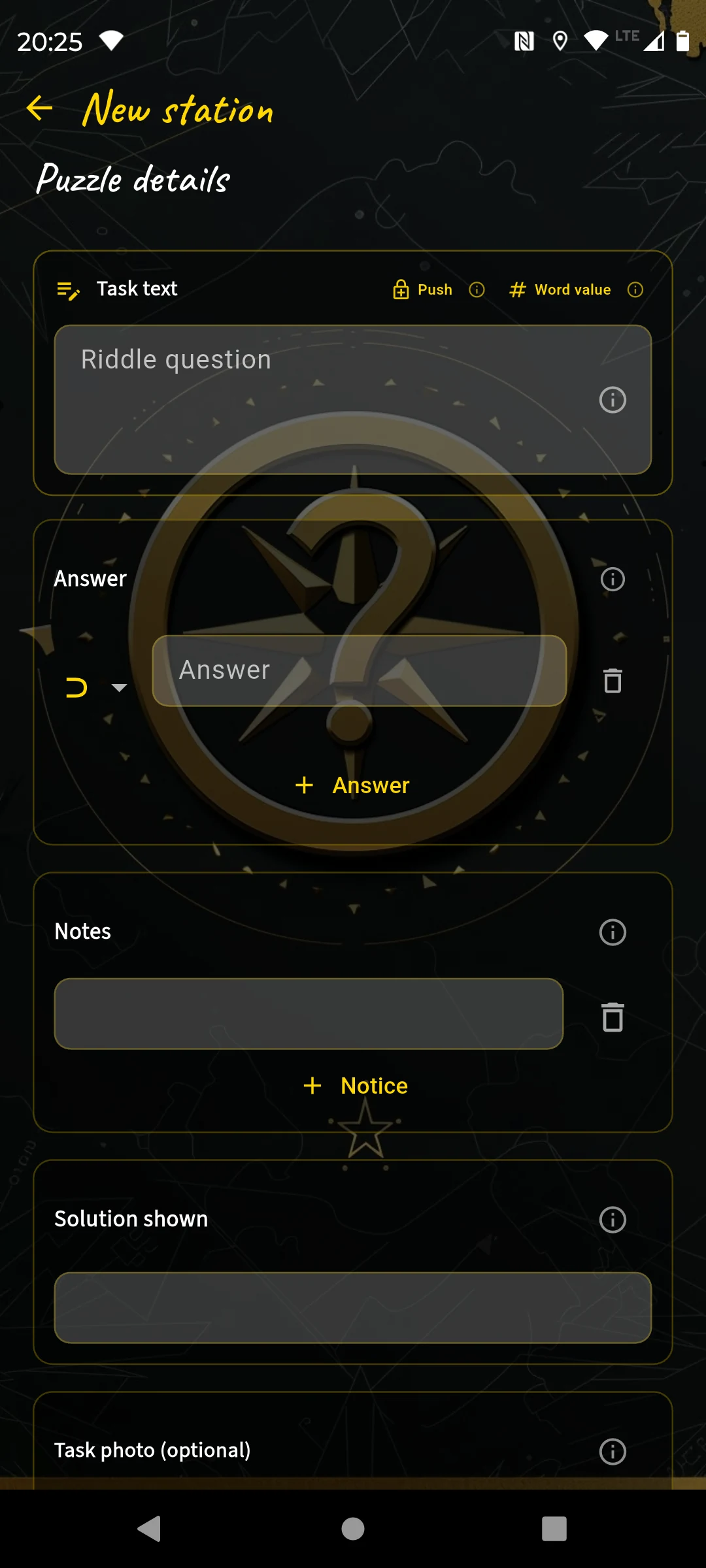
Question, answer, answer type, hint
- Question: "Above some town hall windows there are coats of arms — how many different ones can you see?"
- Answer:
# 6— I choose the type Number so the player sees the numeric keyboard. - Task photo: A distinctive part of the town hall facade so players immediately know which side is meant.
- Hint: "Only look at the windows facing the market side."
The entry should be easy — visible on site, no searching, no thinking required. The first station is about arriving, not puzzling.
Station 2 — Market Fountain Question & Answer
A few steps further, at the fountain itself. Name: "Market Fountain", search image: close-up of the relief. Puzzle type again Question & Answer — no new screenshot.
- Question: "The fountain carries a year — for the answer, add the four digits."
- Answer:
# 17(year 1934 → 1+9+3+4) - Hint: "The year is carved at the base on the north side."
For a private birthday course I wouldn't ask about a year on the fountain, but something personal: "How old is our birthday child today?" — Answer: # 42. That's a question only the group can answer — and therefore doesn't belong in a public course.
Station 3 — City Church Question & Answer
Name: "City Church", search image: detail of the church door. Puzzle: Question & Answer.
- Question: "How many stone figures with beards stand at the church portal?"
- Answer:
# 12 - Hint: "The figures are arranged in two groups left and right of the portal."
Station 4 — Town Hall Tower Photo task
Now comes a different type: the Photo task. Players take a photo, there is no answer check. This is intentional — in the first third the team should produce a souvenir photo before the puzzles get harder.
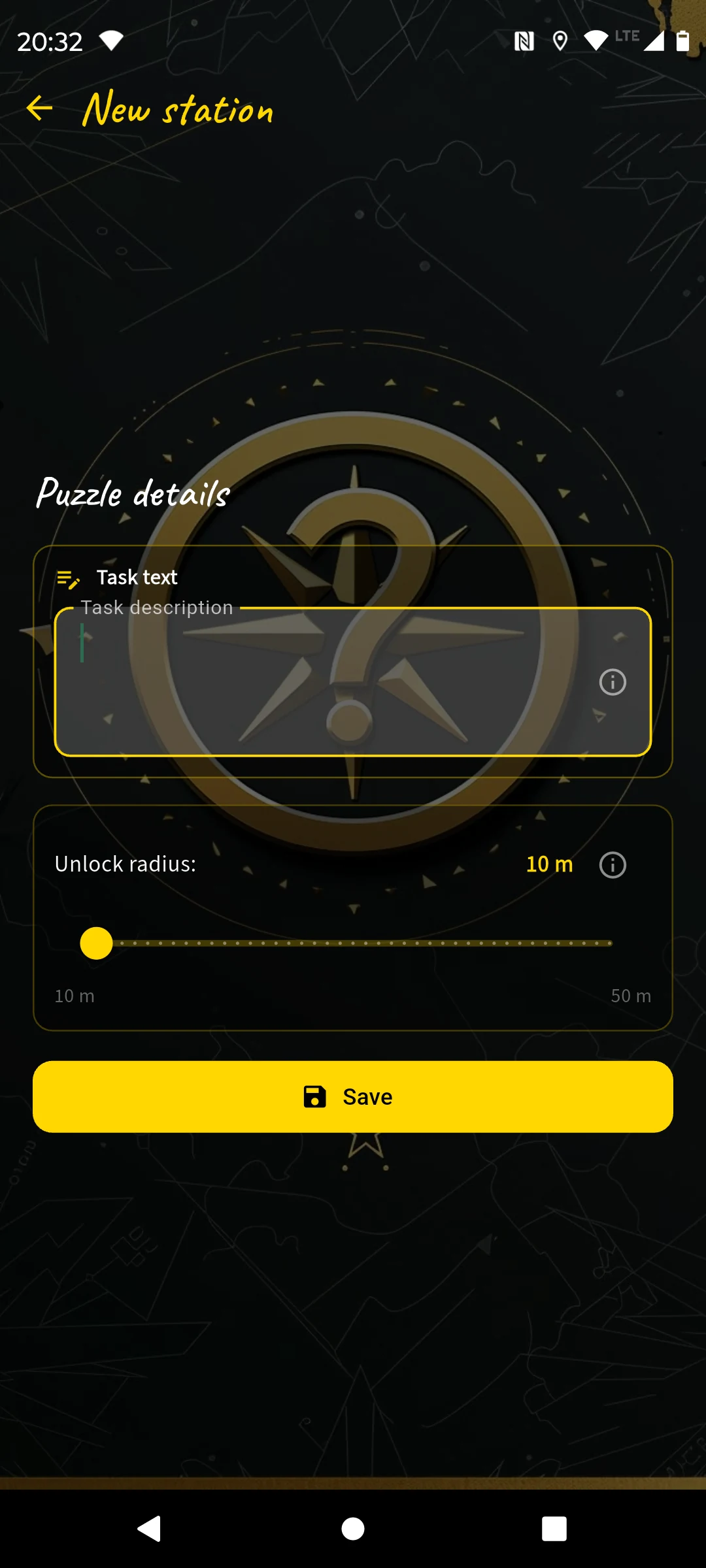
Just a task description — no answer field
Name: "Town Hall Tower", search image: photo of the tower top.
- Task: "Take a selfie in front of the town hall tower — ideally with the tower visible in the background!"
I don't need to fill in anything else here. The station is set up in ten seconds.
Station 5 — Old City Gate Tile swap
At the city gate I take a photo directly in the app. The gate is a rewarding subject — clear structure, no tiles that look too similar.
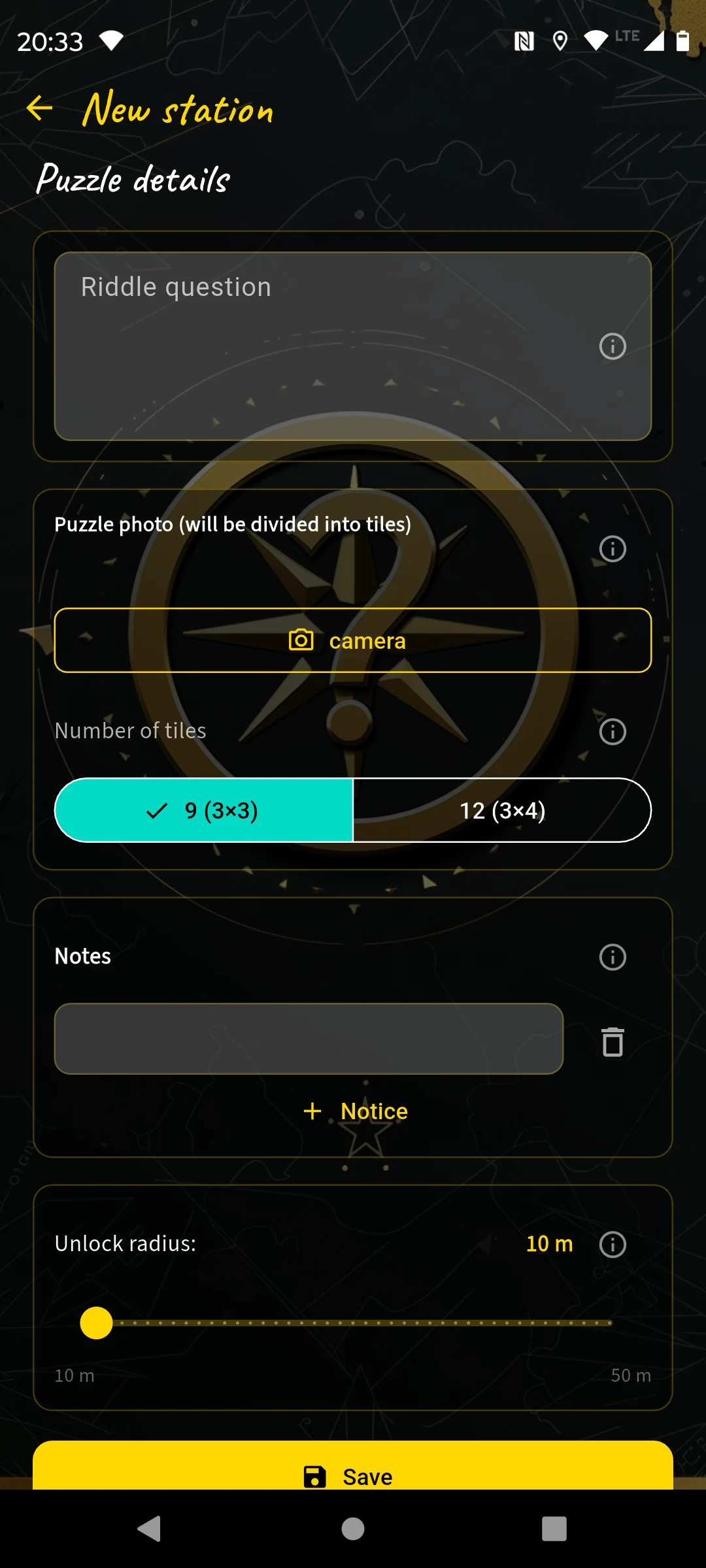
Take photo → app automatically cuts it into tiles
Name: "Old City Gate", search image: close-up of the archway.
- Photo: I take it directly in the app, portrait format. The app cuts it into a 3×3 grid and shuffles the tiles.
- Puzzle question: "Bring the tiles back into the correct order!"
- Hint: "Turn to the gate and look at the original carefully!"
Station 6 — Linden Avenue Direction walk
The Linden Avenue has no striking landmark — and that's exactly what makes it ideal for a Direction walk. Players navigate here using the live compass to a historical hydrant, without a GPS pin.
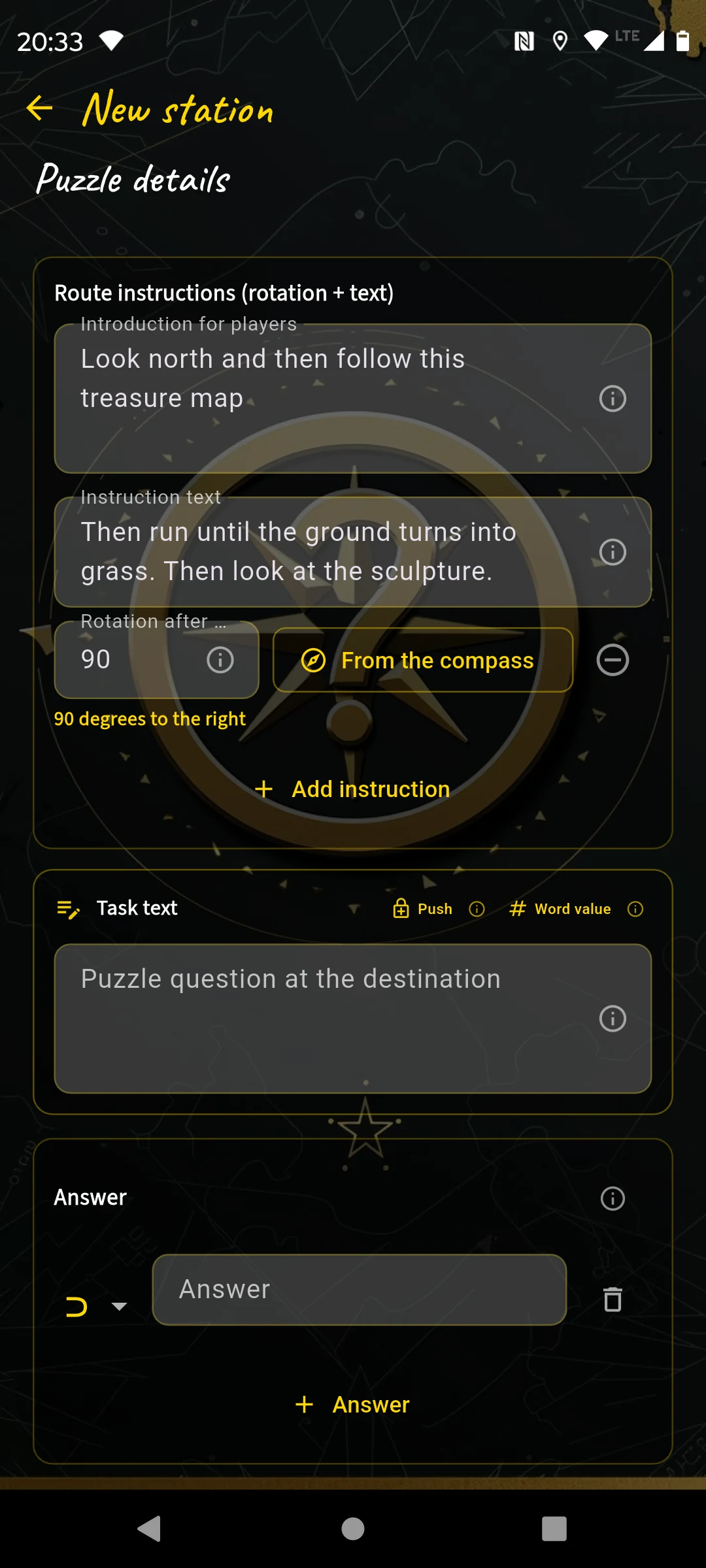
Introduction, segments with turn angle, question at the destination
Name: "Linden Avenue", search image: view down the avenue.
- Introduction: "Stand at the entrance to the avenue and hold your phone up — the compass will guide you."
- Segment 1 — 90° right: "Walk to the lamp post."
- Segment 2 — 30° left: "Continue until the pavement changes."
- Segment 3 — 45° left: "Walk to the next obstacle."
- Puzzle question: "What is directly in front of you?" — Answer:
⊃ Hydrant
Station 7 — War Memorial Question & Answer
Name: "War Memorial", search image: detail of the base inscription. Puzzle: Question & Answer.
- Question: "Turn your back to the memorial and look straight ahead — which building stands at the end of the avenue?"
- Answer:
⊃ post— type Contains, so "post office", "post building" and "post" are all accepted. - Hint: "The building has a yellowish-white facade."
Station 8 — City Park Spot the difference
In the city park there is a bench with a dedication inscription. I take an original photo and then add two differences — the app gives me two tools for this.
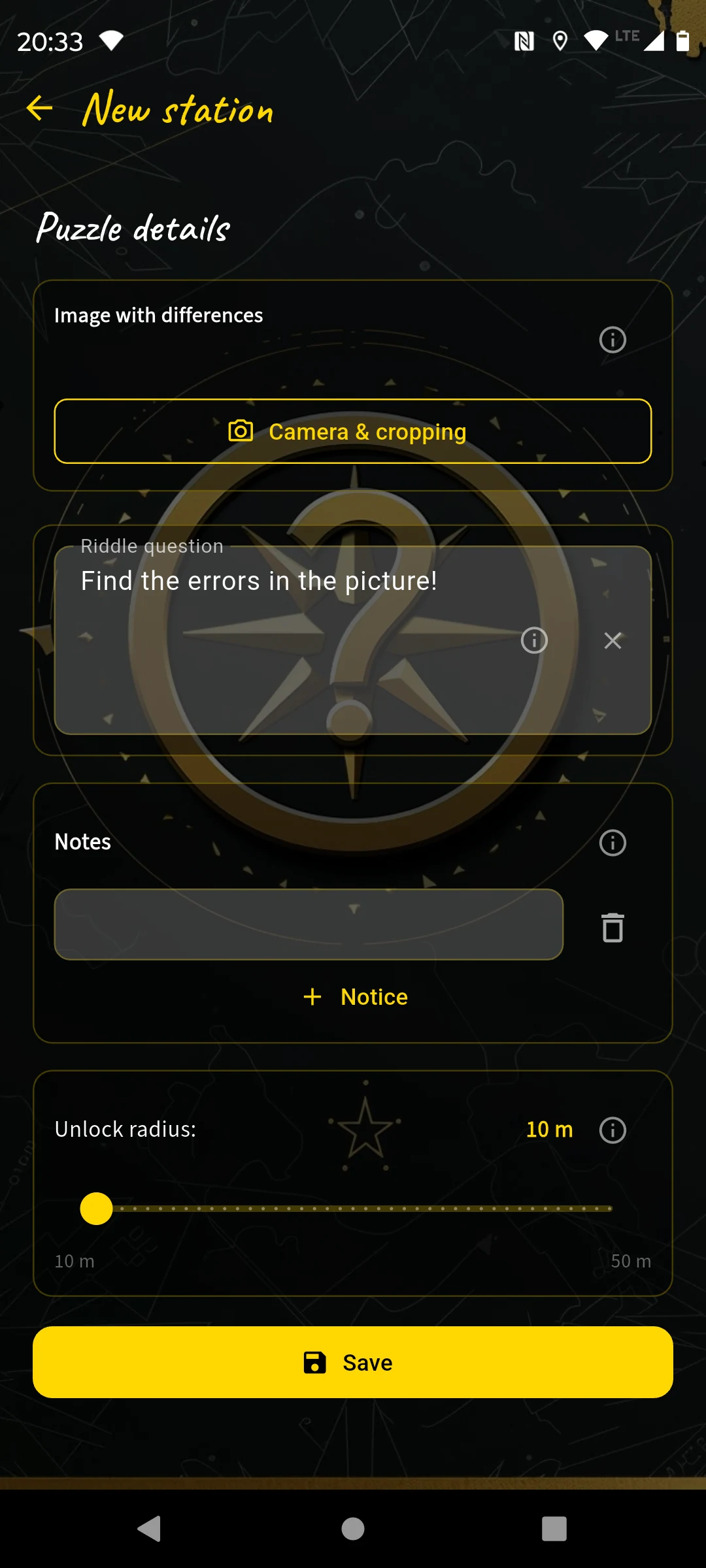
Take original, then add differences
Name: "City Park", search image: bird's eye view of the bench.
- Original photo: Detail shot of the inscription, square, good light.
- Differences added: I place a few small flowers in the image.
- Task: "Compare the image on your phones with the bench in front of you — where does it differ?"
The app automatically detects which image areas I changed and checks whether players tap the correct fields.
Station 9 — Old Bridge Question & Answer
Name: "Old Bridge", search image: part of the bridge railing.
- Question: "Stand in the middle of the bridge and look upstream — how many towers can you see in the city skyline?"
- Answer:
# 3 - Task photo: Shot in the direction of view, without showing the skyline.
- Hint: "Count only the towers that clearly rise above the roofline."
Station 10 — Fountain Sort images
At the fountain I photograph six reliefs with different animal motifs and enter the animal names. Task: match the images to the animals.
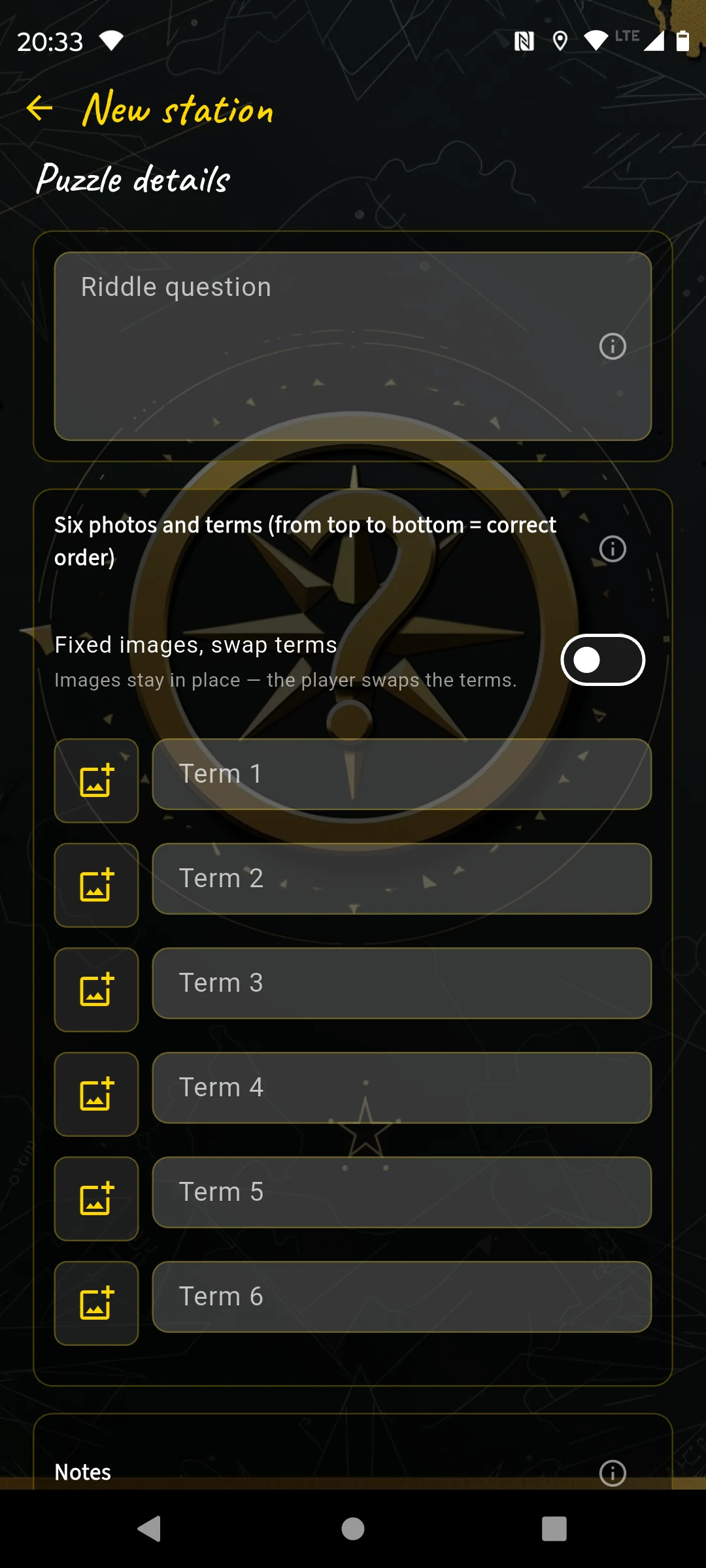
6 photos + 6 labels — the correct match is the solution
Name: "Fountain", search image: full view of the fountain.
- 6 photos: Of animal motifs on the fountain.
- 6 labels: "Lion", "Lioness", "Fish", "Eel", "Swan", "Shell"
- Question: "Which image shows which animal?"
Station 11 — City Wall Question & Answer
Name: "City Wall", search image: view into the gateway arch.
- Question: "A carved animal head is hidden in the archway — the so-called keystone. What animal is it?"
- Answer:
⊃ eagle - Task photo: Overview photo of the archway.
- Hint: "Look at the highest point of the arch — directly in the center."
Station 12 — Keep Crossword puzzle
At the keep I enter five questions relating to the castle. The app builds the letter grid automatically and shows me a preview.
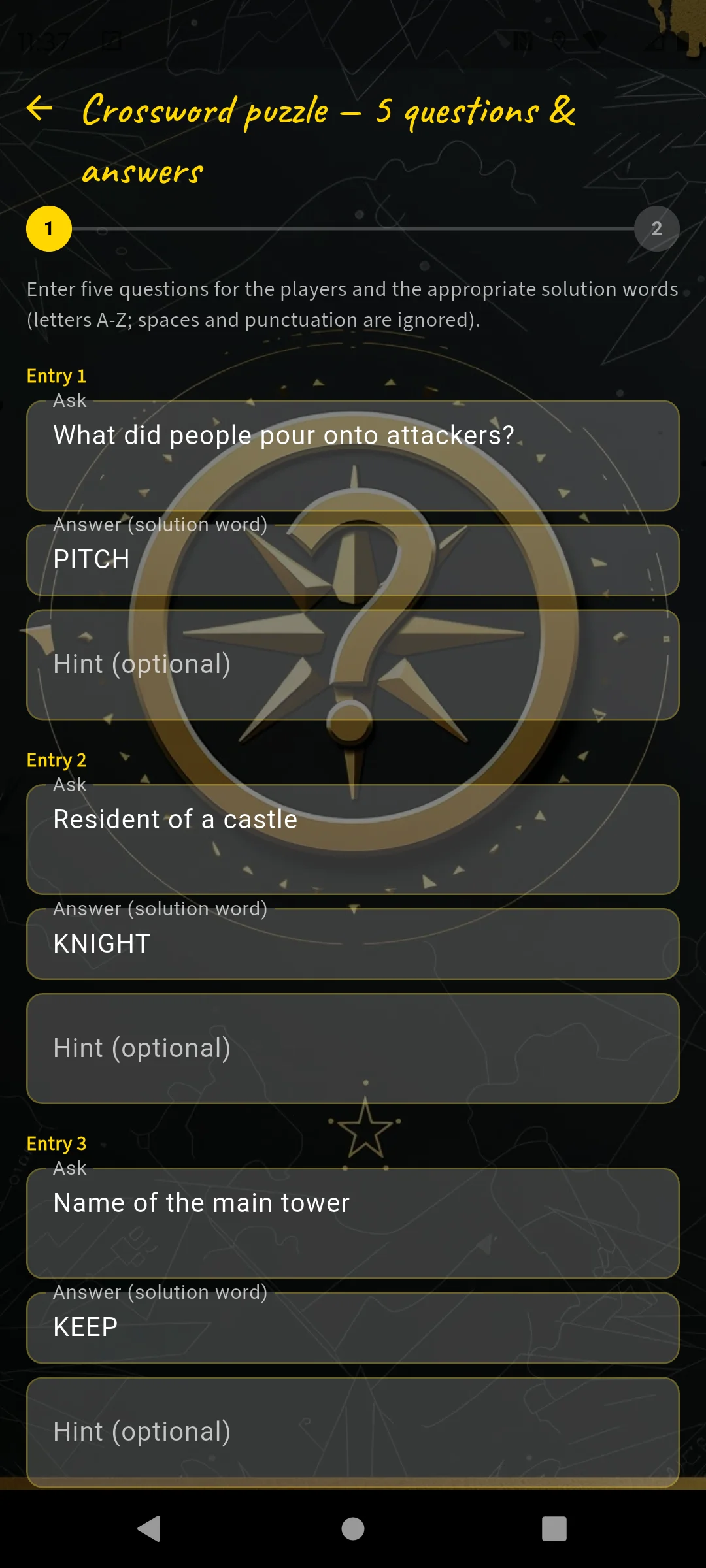
5 questions + answer words to enter
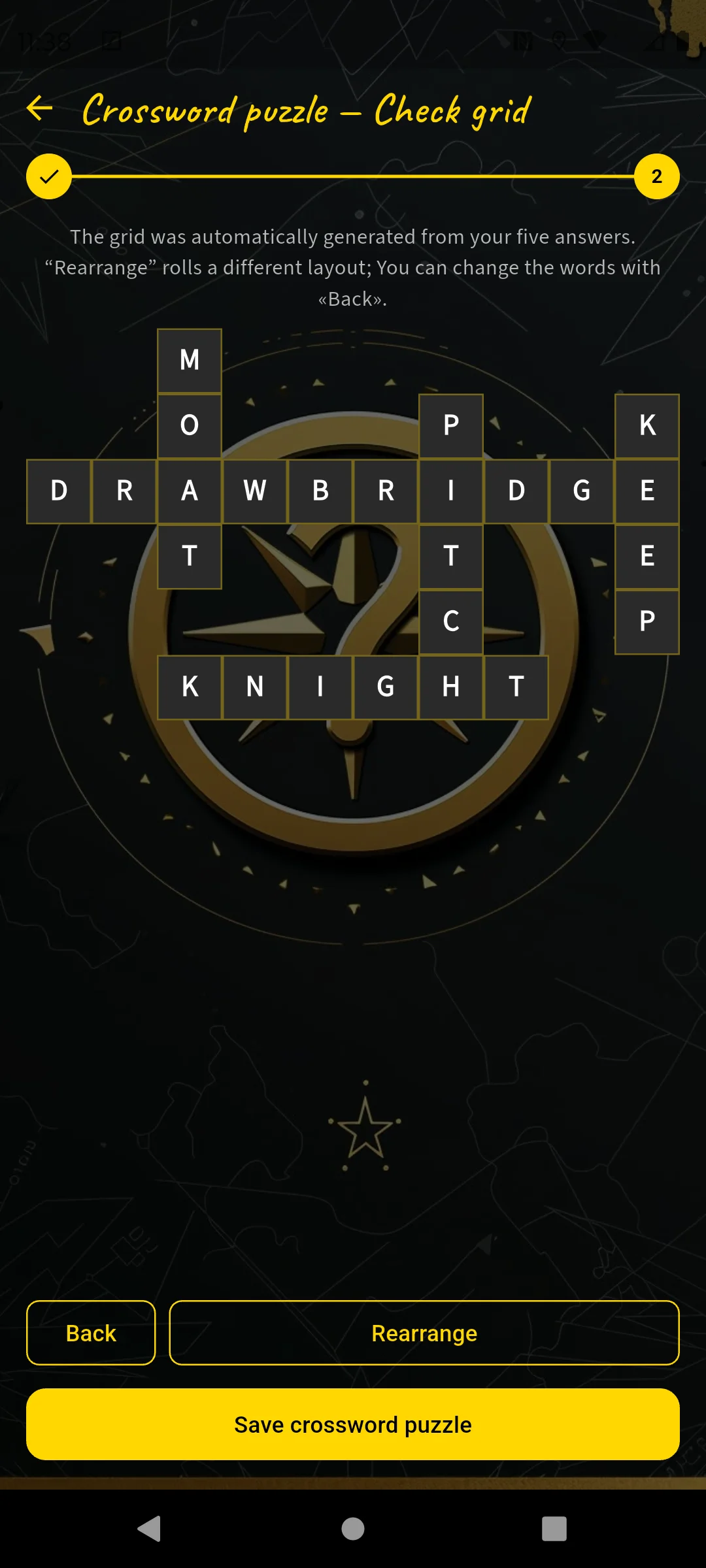
Check the automatically generated grid
Name: "Keep", search image: tower masonry detail.
- "What protected castle gates in the past?" → DRAWBRIDGE
- "What is the water moat around a castle called?" → MOAT
- "Name of the main tower" → KEEP
- "Resident of a castle" → KNIGHT
- "What did people pour onto attackers?" → PITCH
I check the grid in the preview and tap "Rearrange" if needed until I like the layout. Each question gets a short hint with a location description.
Station 13 — Castle Chapel Question & Answer
Name: "Castle Chapel", search image: the door lock.
- Question: "The chapel door knocker is shaped like an animal — which one?"
- Answer:
⊃ lion - Task photo: The lower half of the door.
- Hint: "The knocker is on the left of the two entrance doors, at chest height."
Station 14 — Castle Garden Digits as symbols
The garden gate carries a year — ideal for Digits as symbols. I type the year into the question and press "Encode numbers". The app replaces each digit with a symbol and generates equations as a solving aid.
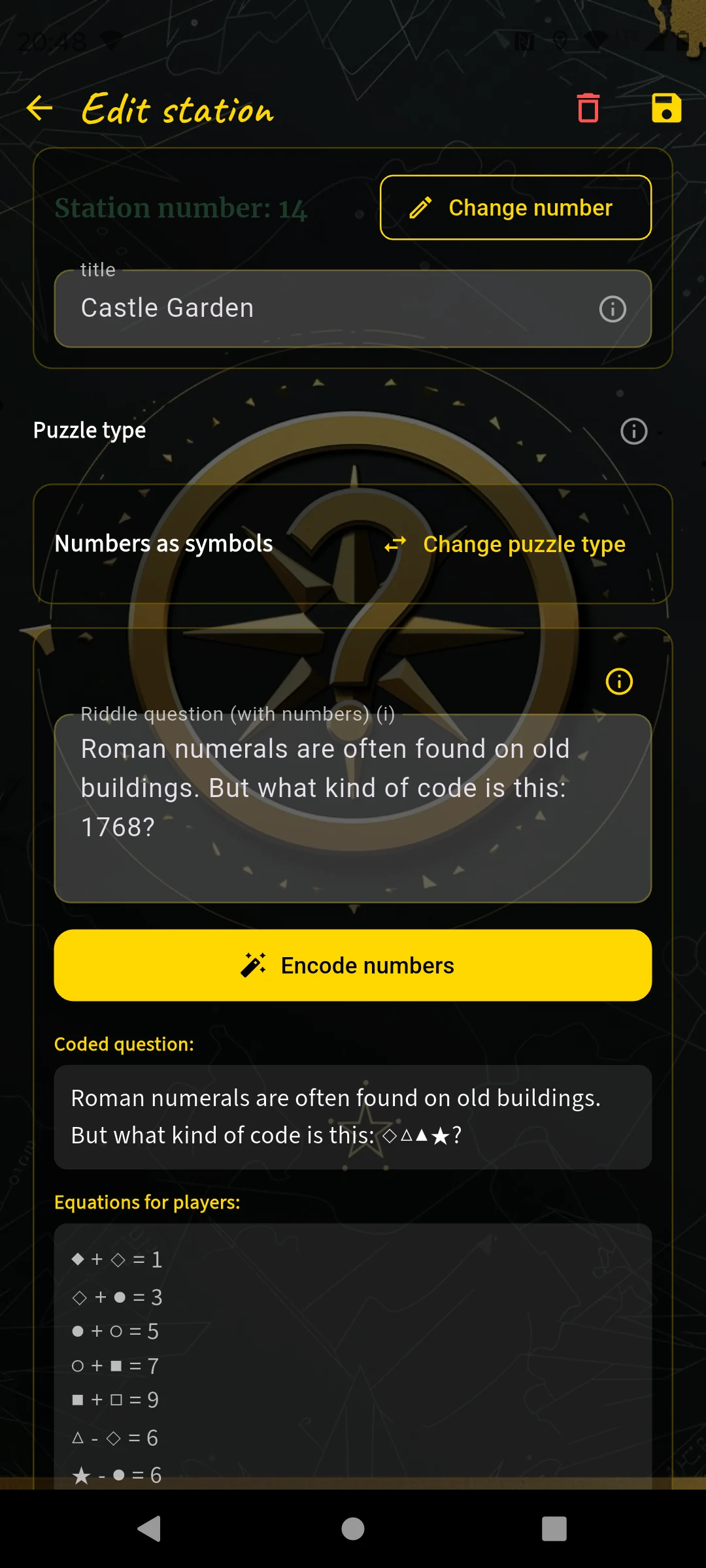
Enter a number → "Encode numbers" → symbols replace the digits
Name: "Castle Garden", search image: detail shot of the gate.
- Question: "Roman numerals (I, X, D, C) are often found on old buildings. But what kind of code is this: 1768?" — after encoding, the digits 1768 in the text are replaced by symbols.
- With the year, players can already assign up to 4 digits to their symbols. Using equations shown to them, they can finally map all symbols to a digit (0 to 9).
Station 15 — City Museum Question & Answer
Name: "City Museum", search image: 2–3 letters from the museum name above the entrance.
- Question: "Muesum — what? Never heard that! What could it mean?"
- Answer:
= Museum - Task photo: Photo of the entrance area without the lettering.
Station 16 — Old Mill Question & Answer
Name: "Old Mill", search image: detail of the recumbent millstone.
- Question: "The old millstone lies flat in front of the entrance — count the grooves on one half and double it."
- Answer:
# 24 - Hint: "Grooves are the carved channels that radiate outward from the center."
Station 17 — Mill Pond Question & Answer
Here I plan an observation of the senses — but I'm honest with myself: this only works in good weather. So there's a hint for cloudy days.
Name: "Mill Pond", search image: view across the water surface.
- Question: "Stand at the edge of the pond and look into the water — what color is the bottom?"
- Answer:
⊃ green - Hint: "In murky water, look toward the sunny side — the water is clearest there."
Station 18 — Market Square (Finish) Tile swap
The last station leads back to the starting point — a circular course. For the finale there is the most difficult tile puzzle: the app cuts the photo into a 3×4 grid (12 tiles instead of 9) — more pieces, more combinations, more tension.
Name: "Market Square (Finish)", search image: view of the fountain from the direction of the town hall — same place, different angle from Station 1.
- Photo: I take it directly in the app, portrait format. The app cuts it into a 3×4 grid and shuffles the 12 tiles.
- Hint: "You already know this place — look at the original carefully!"
Course details & final question
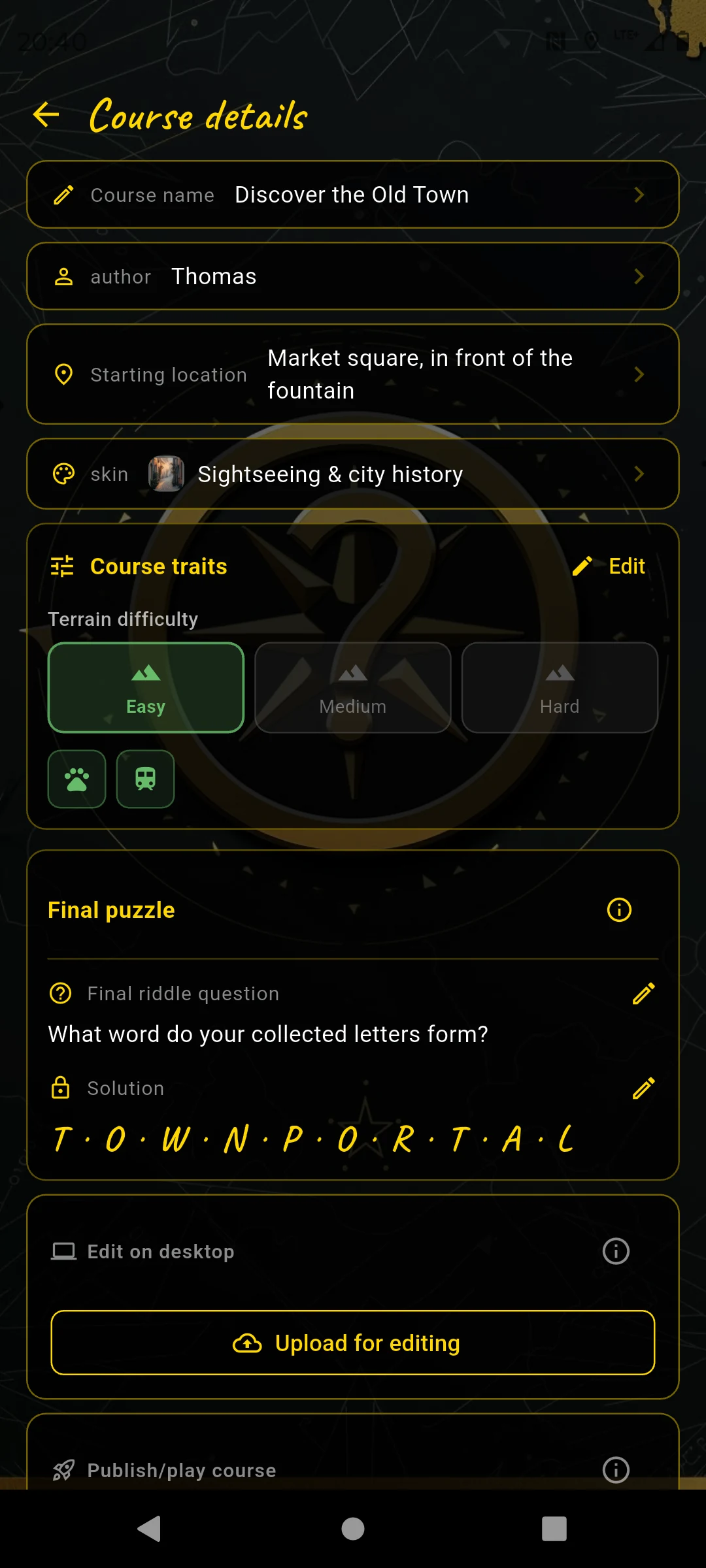
Terrain difficulty, skin, final question
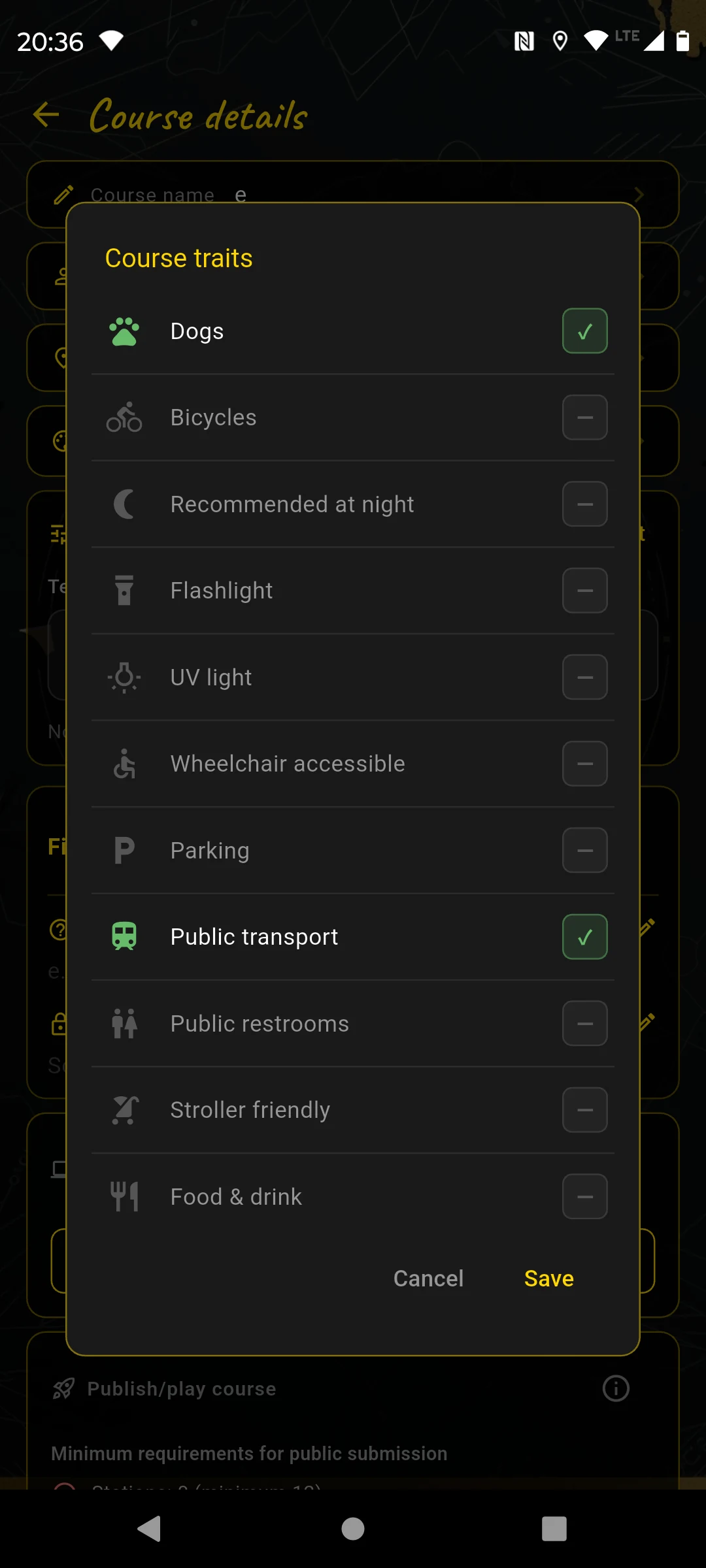
Course features: terrain, dogs, public transport …
Via "Course" on the map I open the course details. I set the terrain difficulty to Easy and activate the course features Public transport and Dogs allowed — both apply to the old town. Then I enter the final question:
Optionally, I also choose a course thumbnail here: a square image of the starting area or a typical motif from the course. It later appears in the "I am a player" course list and helps players immediately recognize where the course takes place. If I do not choose a custom thumbnail, the app automatically uses the first station image.
- Final question: "What word describes the old city gate?"
- Solution word:
CITYGATE— the letters appear in the finale as hangman buttons.
In the finale, the solution word is hidden as a row of underscores. Players can enter it directly or reveal individual letters, which reduces the final bonus.
Review everything
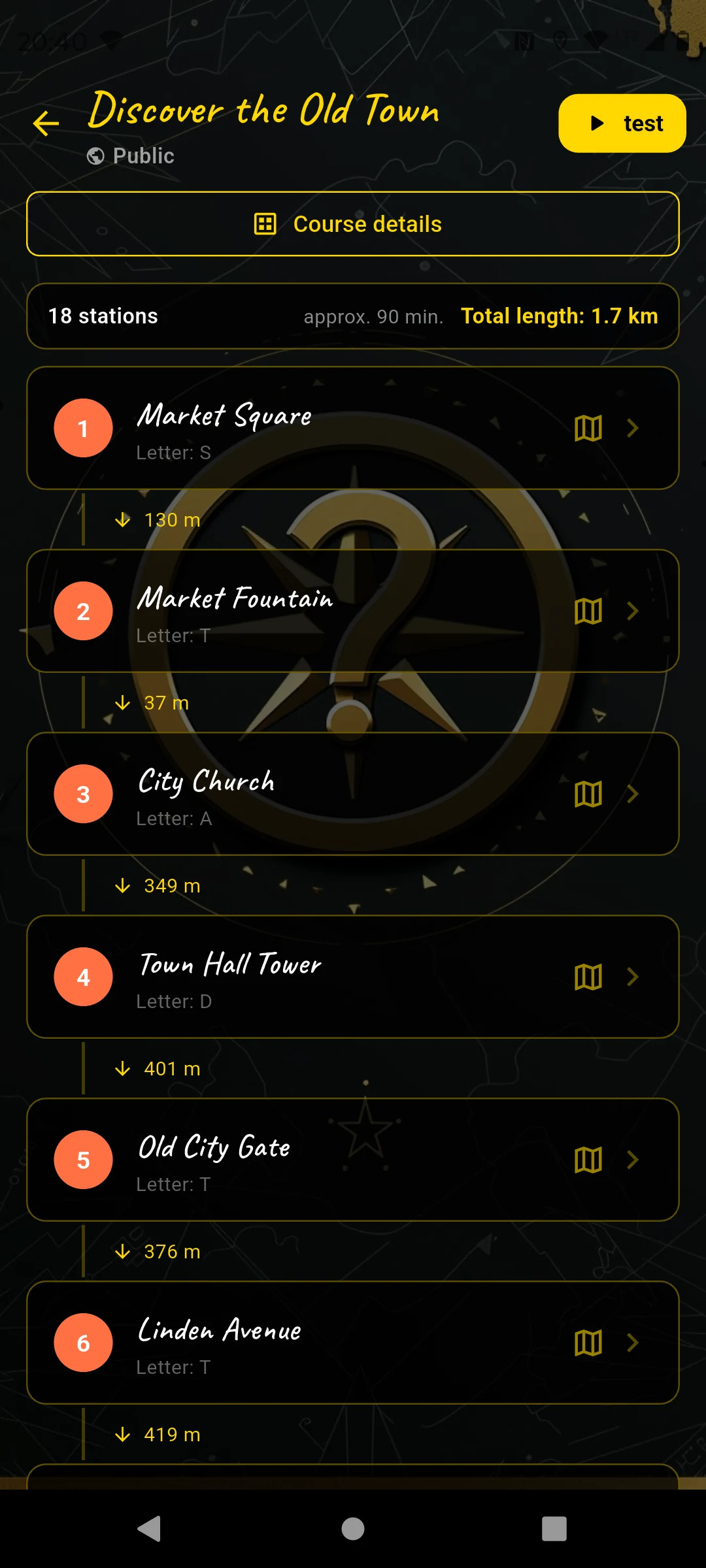
All 18 stations, distances, letters
The course overview shows all 18 stations in order with the distances between them. I tap each station, open it in preview mode and check: Is the question correct? Is the search image sharp? Does the answer work?
Submit & receive tickets
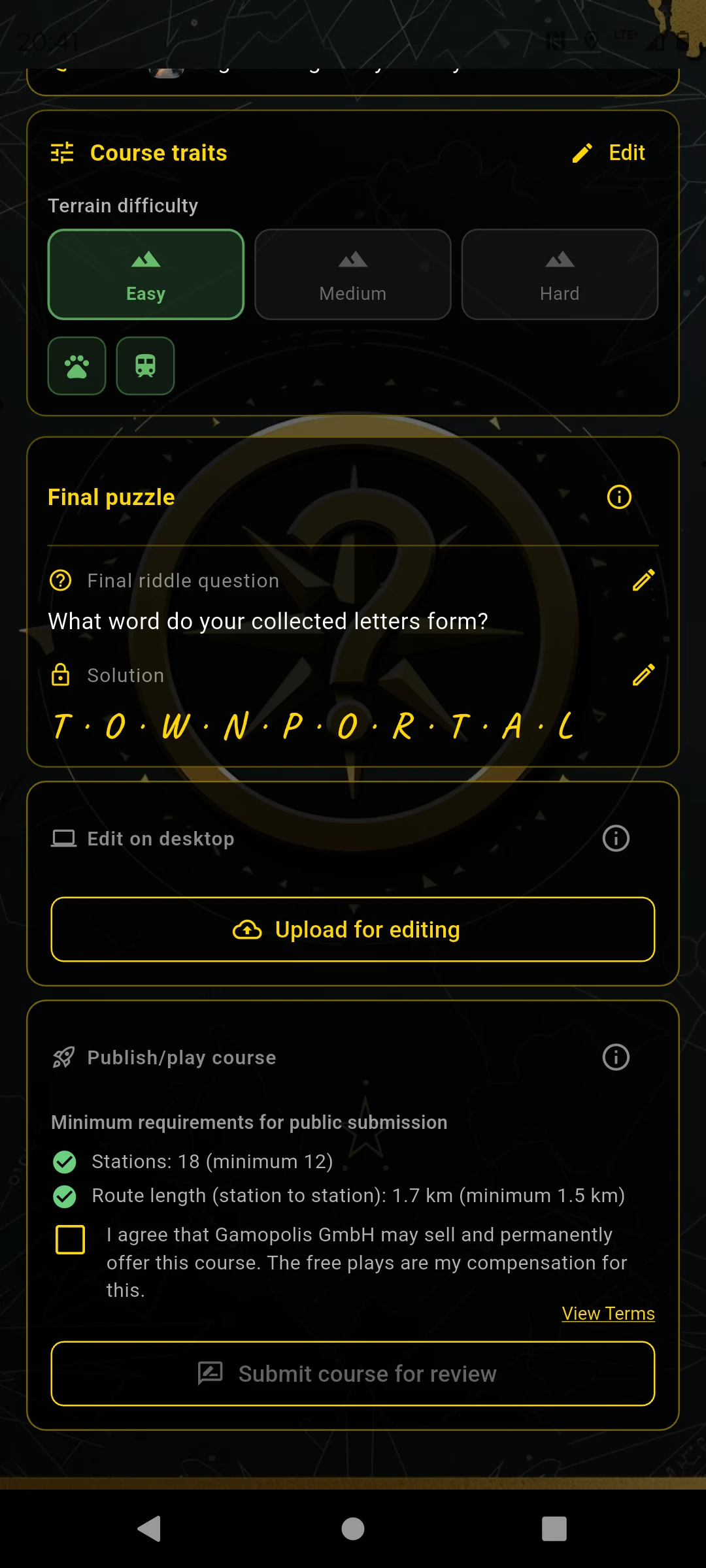
"Submit for review" — approved within 1–2 days
In the course details I tap "Submit course for review". Within 1–2 days the team checks the course and approves it. Then it appears in the catalog — and I receive a push notification.
After approval I receive tickets. With these I can play my own course — or any other public course — with friends. That is the reward for creating.
For a private course there is no review process. In the course details I tap "Release for play" and redeem one ticket for exactly this play event. I can then add any number of teams to that event. Unstarted or paused codes do not expire; after every team finishes, a later, new event requires another ticket. For everyone-for-themselves mode, I share the course without a game code.
All stations should be on publicly accessible ground. Respect property rights, house rules and restricted areas.